Keyboard
GDevelop gives access to all inputs made on the keyboard. This includes conditions to check if a key was pressed or released.
Warning
Keyboard conditions do not work with on-screen keyboards on touch devices. When making a game for mobile or touch devices, use the mouse/touch conditions instead.
Key pressed vs. key just pressed
There are two distinct ways to detect a key press:
- Key pressed is true as long as the key is held down (it stays true frame after frame while the user holds the key).
- Key just pressed is true only on the single frame when the key starts being pressed.
Use Key just pressed for actions that should happen once per press (jump, fire a single shot, validate a menu choice) and Key pressed for continuous behaviors (move while held, charge a shot).
Any key pressed / Any key released
These conditions trigger when any key on the keyboard is pressed or released during the frame. They are useful, for example, to dismiss a splash screen or "Press any key" prompts.
Key pressed (text expression)
To test a key press using this condition, you need to enter the key name in the form of text expression. For example, if you want to check the left arrow key press, you need to enter "Left" in the field.
Danger
Make sure that the key name is surrounded by quotes.
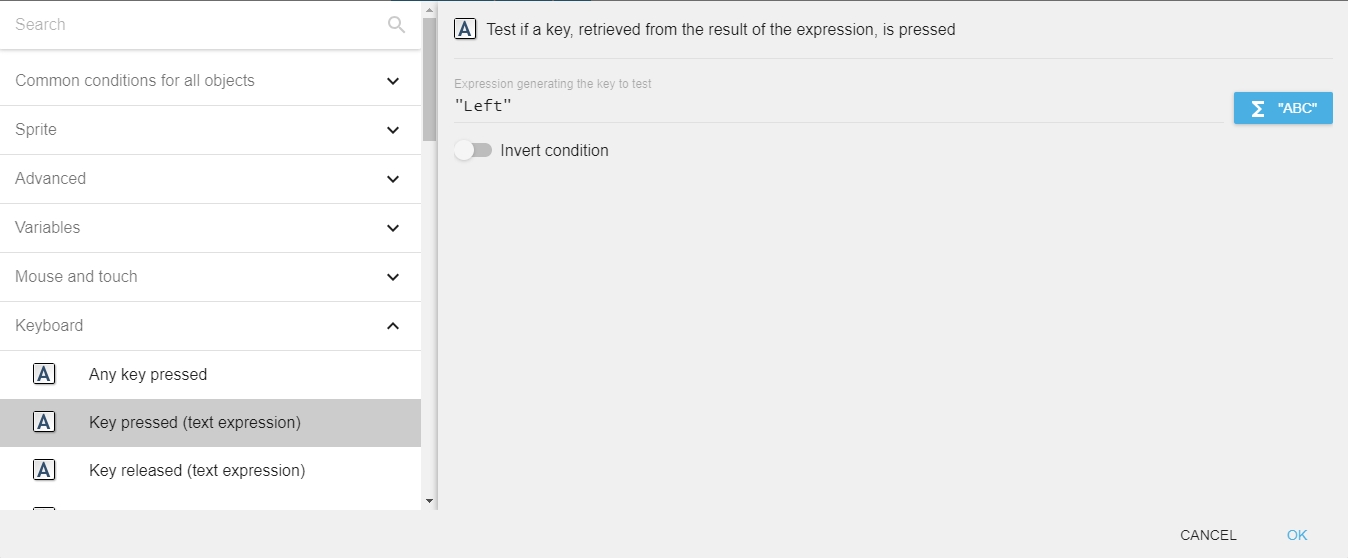
This text-expression variant is mostly useful when the key to check is stored in a variable (for example, a customizable control scheme where the player picks their own keys).
Valid key names
The following key names can be used in any text-based key condition or compared against the Last pressed key expression:
- Letters (lowercase):
a,b,c, …,z - Number row:
Num0toNum9 - Numpad digits:
Numpad0toNumpad9 - Function keys:
F1toF12 - Arrows:
Left,Up,Right,Down(andNumpadLeft,NumpadUp,NumpadRight,NumpadDown) - Modifiers:
LShift,RShift,LControl,RControl,LAlt,RAlt,LSystem,RSystem(Windows / Command keys) - Editing & navigation:
Space,Return,Back(Backspace),Tab,Delete,Insert,Escape,Home,End,PageUp,PageDown,Pause,Menu - Punctuation & symbols:
SemiColon,Comma,Period,Quote,Slash,BackSlash,Equal,Dash,LBracket,RBracket,Tilde - Numpad operators:
Add,Subtract,Multiply,Divide(andNumpadAdd,NumpadSubtract,NumpadMultiply,NumpadDivide,NumpadReturn,NumpadHome,NumpadEnd,NumpadPageUp,NumpadPageDown)
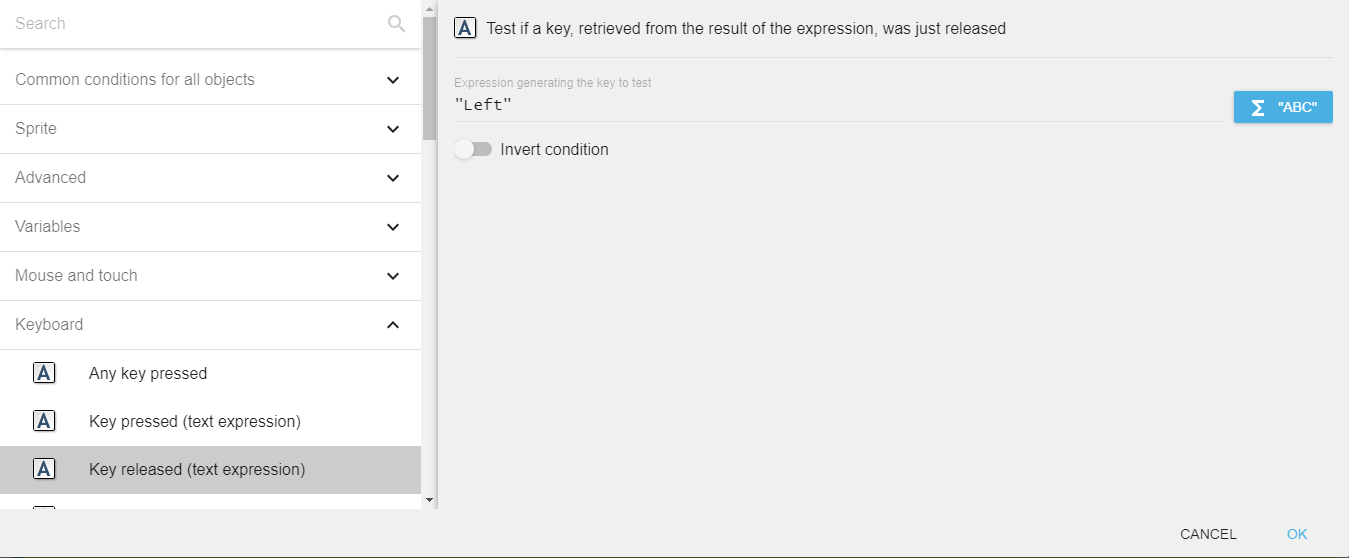
Key released (text expression)
To test a key release using this condition, you need to enter the key name in the form of text expression. For example, if you want to check the left arrow key release, you need to enter "Left" in the field.
Last key pressed
The Last pressed key expression returns the latest key pressed on the keyboard, as a string (e.g. "Left", "Space", "a"). Combined with the key names listed above, this is convenient when implementing key remapping menus: store the result of this expression in a variable and use it later in Key pressed (text expression) conditions.
Reference
All actions, conditions and expressions are listed in the keyboard reference page.